Home / Guides
How to set up a QR code for wedding photos
Your guests will take hundreds of photos and videos you’ll never see unless sharing is easy. A QR code on every table does it: one scan, and their photos land in one place. Here’s how to set it up properly, from choosing where the photos go to testing the sign before you print fifty of them.
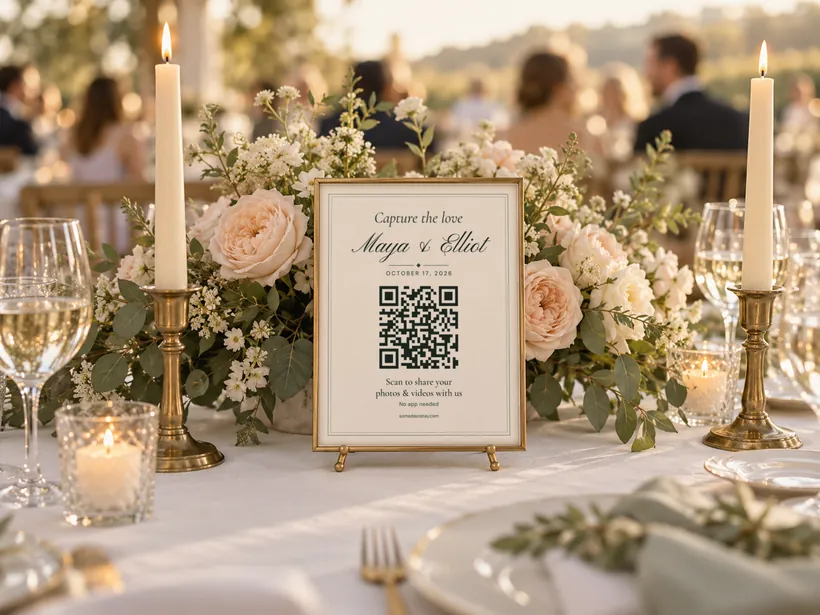
1. Decide where the photos will go
The QR code itself is only a link. What guests experience depends on the page it opens, so choose that first. A good destination:
- opens straight in the phone’s browser, with no app to install
- lets guests add photos without creating an account or signing in
- keeps the original files, videos included, instead of shrinking them
- is private: only people with the link or the code can open it
- lets you download everything at once after the wedding
Shared Google Photos and iCloud albums, a Dropbox file request and wedding photo-sharing sites all cover some of this. We put them side by side in free ways to collect wedding photos from guests.
2. Make the QR code (and avoid the kind that expires)
If your photo-sharing service gives you a QR code, use that one. It already points to the right place.
If you make the code yourself with a QR generator, choose a static code. Many “free” generators make dynamic codes that send every scan through their own server, and those can stop working when a free trial ends. One of the biggest generators says that codes made during its trial deactivate automatically when the trial period finishes. A static code has the link built in and keeps working for good.
Whatever you use, scan the code yourself before you design anything around it.
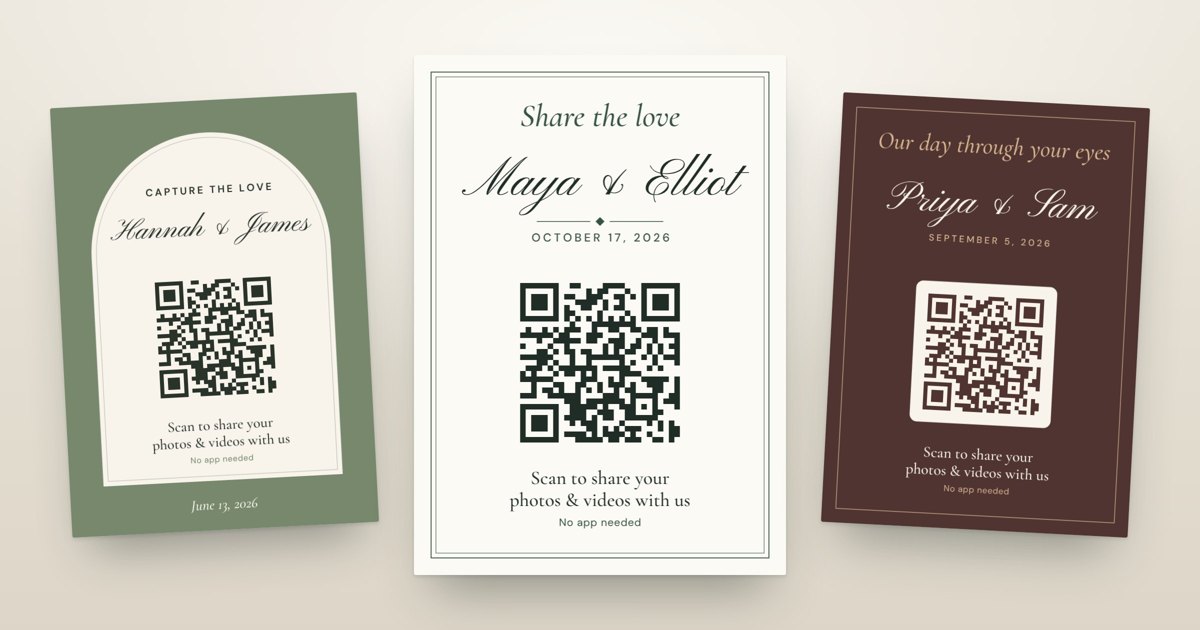
3. Write a sign guests understand in two seconds
People glance at a table sign between courses. Keep it to four things:
- a short, warm line: “Capture the love”, “Share the love” or “Help us capture our day”
- your names, and the date if you like
- one instruction: “Scan to share your photos & videos”
- a reassurance: “No app needed”
Put the web address in small print under the code, for the one guest whose camera won’t focus.
How big to print the code
Most phones read a code that’s at least 2 × 2 cm (about 0.8 in), and a common rule of thumb is that a code can be scanned from about ten times its width (Bitly). Guests scan a table sign from arm’s length, around 40–50 cm, so give the code about 4–5 cm (1.5–2 in) on a 4×6 or 5×7 card, and more on a welcome sign people read from further away. Print it dark on a light background and leave a clear margin around it.
4. Put the signs where phones come out
- one on every guest table
- at the bar and the dessert table, where people wait
- on the welcome sign or seating chart, so guests see it on arrival
- next to the photo booth or the guest book
Then say it once out loud. Ask your MC or DJ to mention it after dinner:
“There’s a QR code on every table. Scan it and add your photos and videos. The couple would love to see the night through your eyes.”
It reaches the guests who walked past every sign.
5. Test it like a guest would
A week or two before the wedding, print one sign at its real size and run through this:
- Scan it from arm’s length with an iPhone and an Android phone.
- Turn off Wi-Fi and try on mobile data. Venue Wi-Fi is often weak.
- Ask a friend who has never used the service to upload a photo and a short video.
- Check that their upload arrives at full size.
- Open the link in a private browser window to see exactly what guests see.
6. On the day, and after
If your service has a live slideshow, put it on a TV or projector at the reception. The first photos appearing on screen are a nudge for everyone else.
In the days after, send guests a short thank-you with the link, so the photos from the after-party still find their way in. Then download the originals and keep a copy somewhere safe.
Set it up in a minute
Some Days Stay gives you a private gallery, a QR code and printable table cards. Guests upload from their phone’s browser in original quality, with no app and no account. Free for up to 30 photos and videos.